Move files and install APKs on your Quest from Windows.
Browse your Quest's shared folders, copy files in either direction, and install apps you have as APK files—all from one Windows app. An APK is an Android app installer file, the format used for Quest apps you build or receive outside the Meta store.
Version 0.4.0 is the first QuestIonAble File Manager release and includes the signed Rusty Kiosk 0.6.4 bundle. Free and open source under the MIT License; the guided setup is the recommended download.
Current public preview
Install the Rusty Kiosk Labs test pair
File Manager Labs 0.5.0-alpha.10 contains the exact signed Kiosk 0.6.6-alpha.9 core and exposes its tested setup, app catalogue, Wi-Fi requirement, guard, and launch-option controls.
Labs stays separate from stable. This exact-version installer registers the Labs Windows app and embeds the co-installable Labs Kiosk packages. It does not replace the stable File Manager or stable Kiosk.
Set up your first headset
The first connection uses USB. After the headset has authorized this PC, the same app can also help you move to Wi-Fi.
Install the Windows app
Open the guided setup. Review the app name and publisher before approving the Windows administrator prompt.
Install Android SDK Platform Tools
Download the current Windows package from Android Developers. It supplies ADB, the developer connection File Manager uses. You do not need to type ADB commands yourself.
Use a USB data cable, put on the headset, and approve the debugging prompt. In File Manager select Refresh, then choose the ready [USB] headset at the top.
Why Windows asks for trust: this public preview uses a project certificate rather than a commercial code-signing identity. The guided setup explains the certificate before adding it. If your Windows policy blocks that route, use one of the alternative downloads below.
Start with one task
Select a ready headset first. Every action is then scoped to that device.
Move a file
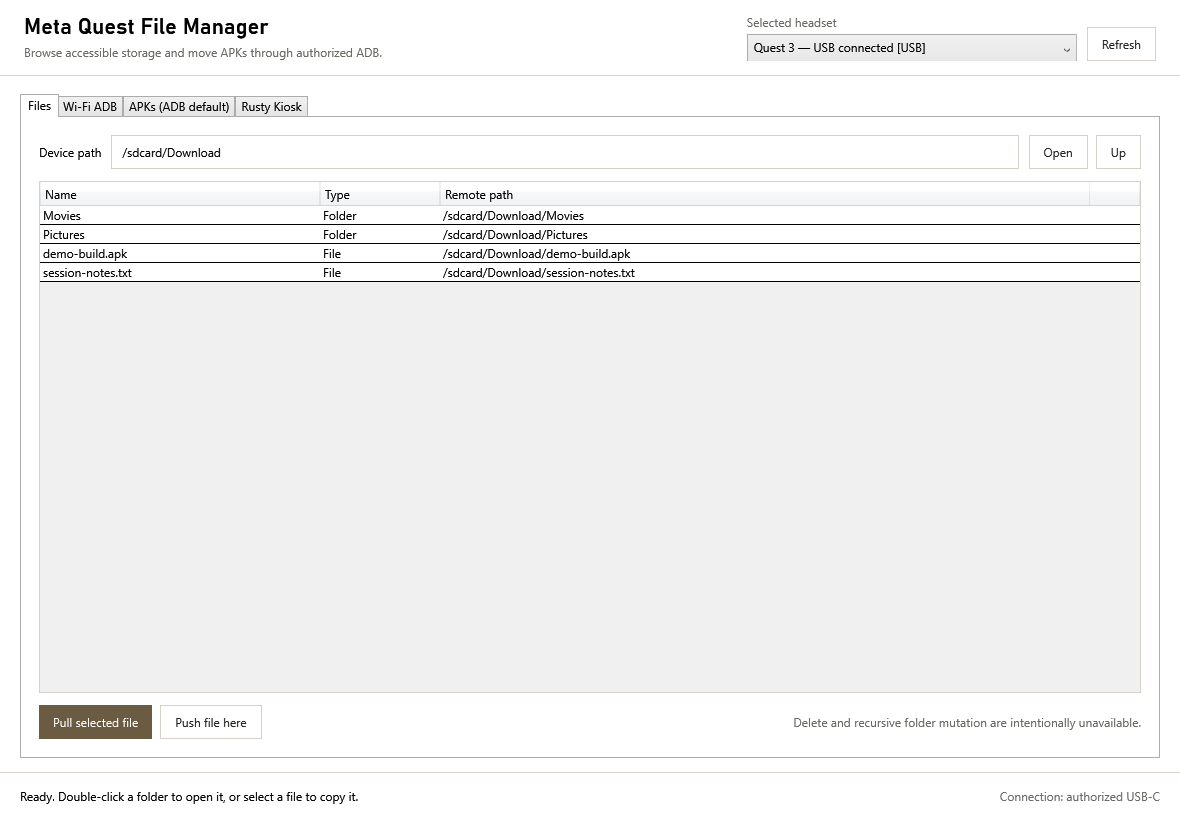
Open Files. Browse the shared storage shown by the app, select a file or open a folder, then use Pull to copy from Quest to Windows or Push to copy from Windows to the open Quest folder.
The starting location is the Quest's shared storage, not private app data.
Install an APK
Open APKs, choose an APK on your PC, review the install options, and select Install on selected headset. Wait for the result before disconnecting.
Installing an APK does not copy saves, purchases, downloaded assets, or store entitlement.
01
Files begins with the selected headset
Confirm the headset at the top, enter or browse a permitted Quest path, then select Pull or Push. The status bar at the bottom reports the result.
Other useful tools
These are available when you need them, but they are not part of the first connection.
APK bundles and export
Install a complete base-and-split APK set together, or export a sideloaded app when Android reports it as one APK file.
Wi-Fi and several headsets
Move an already-authorized headset to Wi-Fi ADB and run one bounded install across several selected Wi-Fi headsets.
Power and performance
Read headset and controller battery levels, keep a connected headset awake, or set and later clear fixed CPU and GPU levels.
Optional: add Rusty Kiosk
Rusty Kiosk is a separate headset app that gives you a searchable launcher, portable tags, and normal or softly guarded launch.
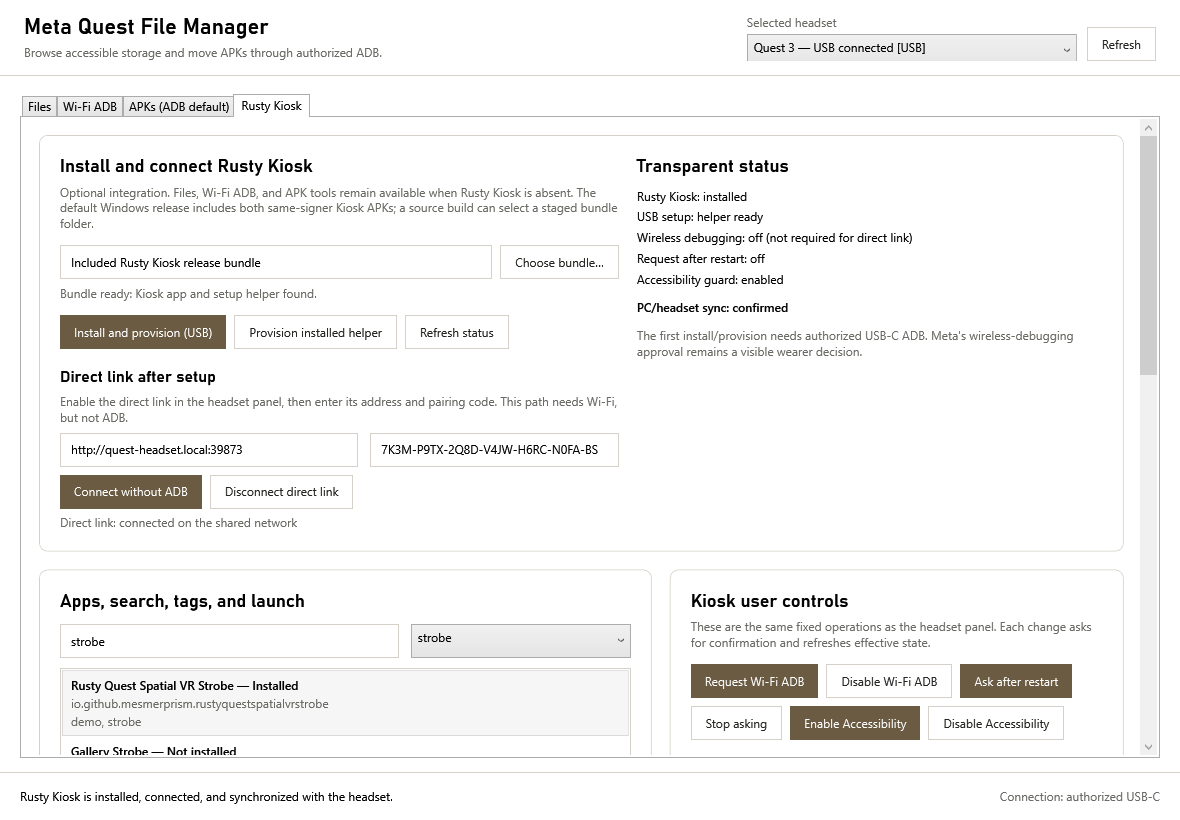
Open the Rusty Kiosk tab to install and provision it over the authorized USB connection. After setup, that tab can manage its catalogue, tags, launch actions, and optional direct link.
Nothing in Rusty Kiosk is required for ordinary file browsing, APK installation, Wi-Fi ADB, or device status. Those File Manager functions continue to work when Kiosk is not installed.
The upper half of the tab holds the one-time USB setup and the optional direct link. Read Transparent status before sending another change.
03
Use the same catalogue from Windows
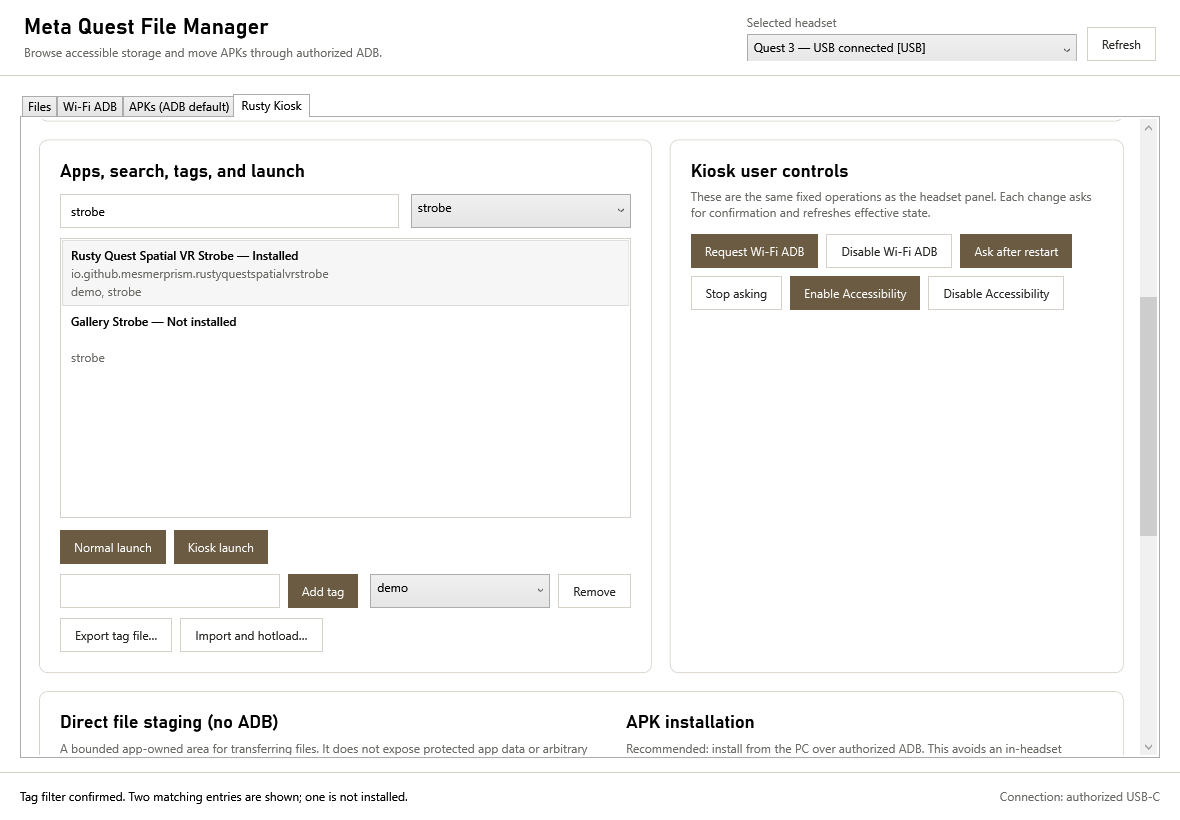
Search and filter the headset catalogue, launch the selected installed app, or import and export its tag file. Missing apps remain labelled and cannot be launched.
The screenshots above are deterministic app renders with sample device and app data; they contain no headset identifiers or device captures.
Optional: prepare for Rusty Fleet
Rusty Fleet is the separate multi-headset dashboard for monitoring, policy, and bounded operations. File Manager remains the owner of its local file and ADB-backed utilities.
The Fleet integration is still a development preview and remains a separate advanced product. Its public Alpha.8 release includes a guided installer and preserves updates from the earlier pre-onboarding bundle, but useful fleet operation still requires separate enrollment and authority configuration. File Manager does not silently install Fleet or become the fleet controller.
Provider discovery describes which narrow owner-defined actions an installed component understands. It does not prove that a provider is installed, healthy, authorized, connected to a headset, or permitted to execute anything.
Start with an authorized USB connection. Open Wi-Fi ADB, choose Enable and connect, review the confirmation, then select the new [Wi-Fi] entry. Wi-Fi ADB may stop after a reboot, network change, or authorization change.
Install on several headsets
Connect at least two ready Wi-Fi headsets, check the intended targets in APKs, choose one APK or one bundle folder, and set a sensible parallel limit. File Manager keeps a separate result for each headset.
Understand APK export limits
Export works only when Android reports one APK file. Apps made from a base APK plus split APKs are refused so an incomplete backup is never presented as usable.
Help
No headset appears after Refresh
Confirm Developer Mode, try a data-capable cable and another USB port, and look inside the headset for the debugging approval. Also check whether File Manager reports that ADB is missing.
File Manager says ADB is missing
Install Android SDK Platform Tools, then reopen the app. Advanced users can also add its folder to PATH or set QUESTIONABLE_FILE_MANAGER_ADB to the full path of adb.exe.
An APK installs but does not run
The app may target a different CPU or Android version, require another package, or expect assets that were not included. The APK file alone is not always the complete app.
Can File Manager browse the whole headset?
No. It shows only the paths Android permits through the authorized developer connection. Private app data remains protected.