

Runtime Config
The runtime-config editor is meant to feel like a structured live runtime surface, not like a generic spreadsheet of keys.
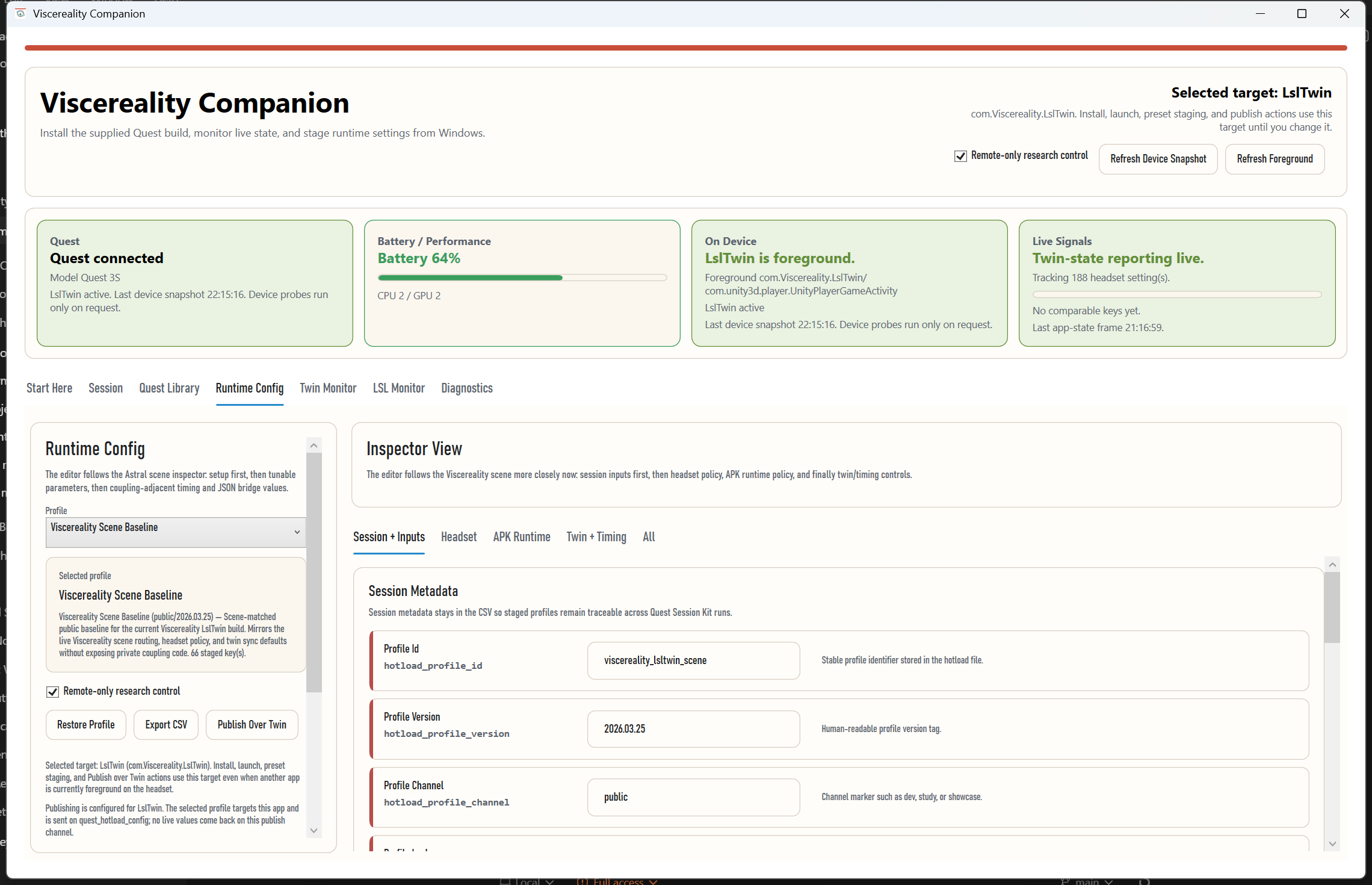
Inspector Sections
The editor is grouped into:
Session + InputsHeadsetAPK RuntimeTwin + TimingAll
That split keeps Quest device policy separate from APK-side runtime policy while still leaving the full public key surface available when needed.
How To Use It
- Open
Runtime Config. - Pick the staged profile you want to track.
- Stay in
Session + Inputsfirst, then move intoHeadsetorAPK Runtime. - Use
Twin + Timingwhen you need sync policy, runtime timing, or the runtime-config JSON bridge without mixing those controls into every other field. - Use
Allonly when you need the complete document view.
The public Sussex Experiment sample now auto-selects the Viscereality Scene Baseline
profile when that app is selected in the library.
Current Session Behavior
Today the operator app can:
- load public config profiles
- edit the tracked values from Windows
- export the current tracked config
- publish the tracked snapshot over the desktop-side transport path
The desktop app is the control surface. The participant-facing APK does not need to expose its own settings UI for this workflow to be useful.
Why This Matters
Most operators should not need the Unity project open just to review or stage a few settings during a session. This editor keeps the shape of the real runtime config visible while making the session workflow usable from a normal Windows app.