PolarH10.App is the Windows operator surface in this repo. It exists to make
the Polar H10 visible as a live telemetry source, not just as a protocol or BLE
exercise. The current app shell is built around a real research workflow:
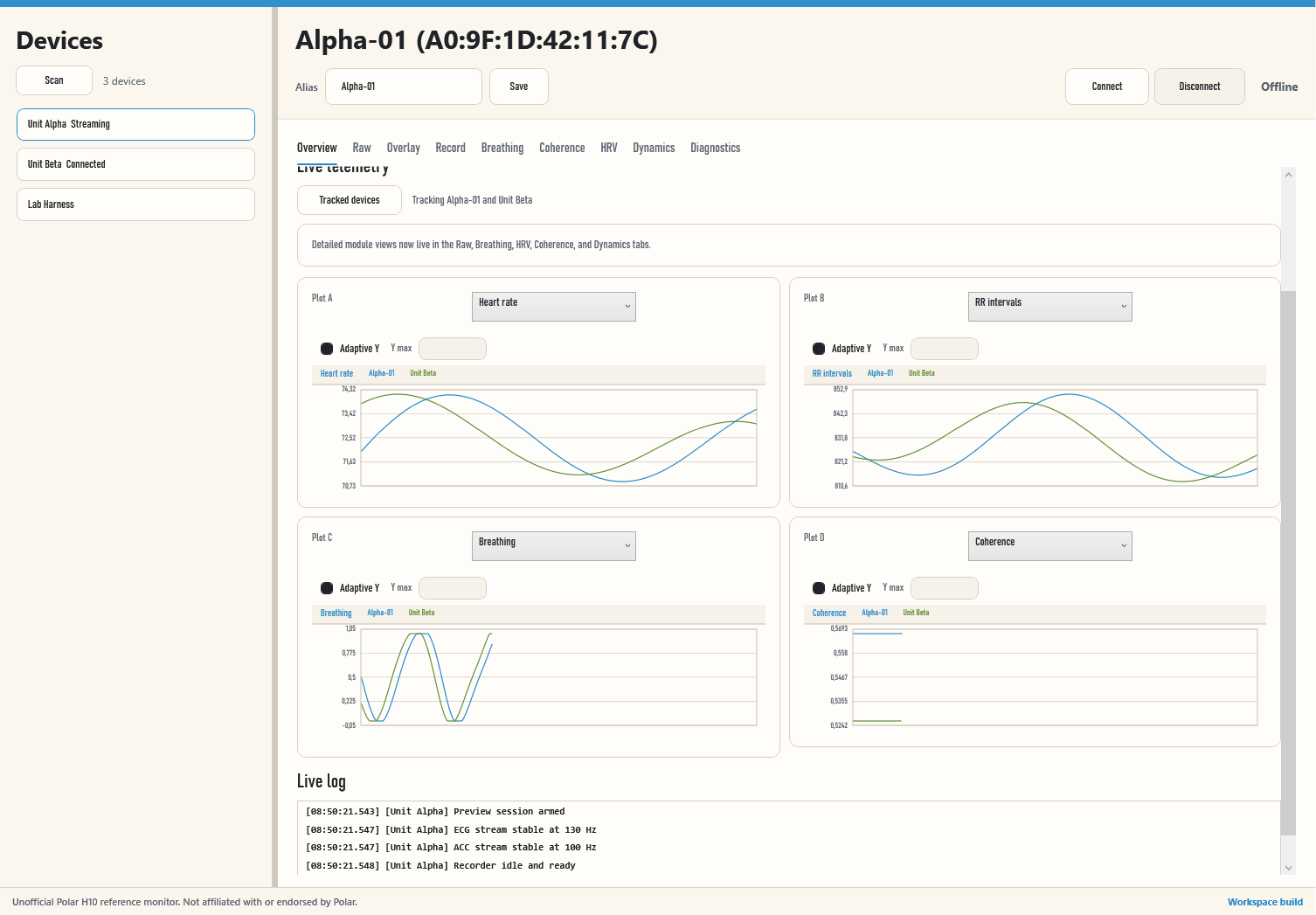
control the selected strap on the left, then compare one or several tracked
straps in parallel in the live telemetry surface.
What The App Is For
- Scan nearby Polar H10 straps and pick the one you actually want to work with.
- Open the BLE/GATT link and confirm the runtime path is healthy before capture.
- Inspect live HR, RR, ECG, and ACC data in one operator-facing monitor.
- Track multiple Polar H10 units in parallel on the live charts when you need direct strap-to-strap comparison.
- Open dedicated coherence, HRV, and breathing-dynamics tabs when the summary plots are not enough.
- Run diagnostics and inspect logs without dropping straight into debugger-only workflows.
- Record sessions to disk so you can replay or analyze them later.
Main Surfaces
Device rail
The left rail is the entry point for discovery and device selection. Use it to:
- scan for advertisements
- identify the correct strap by alias or address
- switch the selected device without losing the rest of the app context
- choose which device the detail panel, connect/disconnect actions, recording controls, and overlay tab currently refer to
Live tab
The Live tab is the core runtime surface. It is meant to answer a simple question fast: is the link alive and is the telemetry useful right now?
Expect to find:
- a dominant heart-rate readout
- supporting metrics such as RR timing
- waveform panels for live ECG and ACC
- a
Tracked devicespicker that follows the selected device by default - optional parallel tracking for multiple straps at the same time on the live charts
- view shortcuts for raw telemetry, coherence, HRV, and breathing dynamics
- a chart treatment optimized for monitoring, not dashboard decoration
Multi-device tracking
Researchers often need to compare two or more active straps without juggling separate windows or mental context. The tracked-device control on the Live tab exists for that case.
- leave
Follow selected deviceon when you want the charts to follow the left rail - turn it off when you want to pin multiple devices into the live charts
- keep using the left rail for alias editing, connect/disconnect, recording, and overlay inspection
- use the overlay tab for the currently selected device when you need a denser single-device view of HR, RR, ECG, and ACC together
Breathing
The Breathing tab is the app-side operator surface for the Polar ACC breathing approximation.
- calibrate directly from the app instead of relying on a hidden runtime state
- inspect live output volume and inhale/exhale state while ACC is streaming
- flip the inhale/exhale mapping when strap orientation makes the default direction feel reversed
- tune thresholds, windows, and adaptive-bounds behavior from the same page
- inspect tracker telemetry before deciding whether a calibration or tuning change is actually needed
- this tracker is repo-specific, not yet externally validated, and is currently being prepared for a dedicated validation study
Coherence
The coherence window is the RR-derived feature view for resonance-style review.
- the headline value is a smoothed 0..1 coherence score derived from accepted RR intervals
- confidence, stabilization, and RR coverage tell you whether the current number is trustworthy yet
- peak frequency plus peak/total band-power fields stay visible without cluttering the Live tab
- reset, defaults, and tuning controls give you direct control over the RR window behavior
HRV
The HRV tab is the short-term RR-derived feature view for time-domain HRV review.
- the headline value is
RMSSD, derived from the rolling accepted RR window - supporting
SDNN,pNN50,SD1,mean NN,mean HR, andlnRMSSDstay visible without overloading the Live tab - the default window follows the five-minute short-term reference discussed by Shaffer and Ginsberg (2017)
- readiness, stale state, and window fill are operator-visible so the page shows when the first solve is actually ready
- reset, defaults, and tuning flows follow the same pattern as the coherence tab
Breathing dynamics
The breathing-dynamics window extends the breathing tracker into a research-facing feature view derived from the calibrated base waveform.
- interval and amplitude breath series are extracted from alternating extrema
- interval entropy and amplitude entropy are surfaced as the headline operator values
- the dedicated window keeps CV, ACW50, PSD slope, LZC, sample entropy, and multiscale entropy visible without bloating the Live tab selector list
- the window includes direct method references back to the Goheen paper, the paper-code repository, and the NeuroKit2 entropy sources that informed the defaults
- reset, defaults, and tuning flows follow the same pattern as the coherence window
Diagnostics
Diagnostics exist so you can verify the session path rather than guessing. Depending on what you are doing, that means:
- checking that GATT services and characteristics are present
- validating PMD settings and stream startup
- inspecting runtime logs when a session stalls or times out
Recording flow
Once the stream is stable, the app and CLI can write:
- heart-rate output
- ECG output
- accelerometer output
- protocol/runtime logs
- run metadata and capture manifests
Typical Operator Flow
- Scan for nearby straps.
- Select the intended device and establish the link.
- Confirm the live telemetry surface is populated and believable.
- If you are comparing subjects or strap placement, open
Tracked devicesand enable multiple straps. - Open
Breathingwhen you need calibrated breath-volume tracking from ACC. - Open
Coherencewhen you need RR-derived coherence and confidence instead of raw RR only. - Open
HRVwhen you need short-term RMSSD plus supporting time-domain HRV telemetry from the rolling RR window. - Open
Dynamics windowwhen you need breath interval/amplitude entropy and the full breathing feature bundle. - Run diagnostics if the session looks wrong.
- Start capture when the stream is stable.
- Stop cleanly and inspect the exported files.
When To Use The CLI Instead
Use the CLI when you need:
- a quick doctor-style validation path
- scripted capture or replay
- direct command output instead of the WPF operator surface
- a smaller surface area while debugging BLE/session issues